The software and the accounts on this page must be ready before the setup session, the second class of week 1, 08:00, in Room 1001. Exact dates are announced in class and on the course site. The session confirms that the software runs on your own laptop, so it has to be installed when you arrive.
Do this at home, on home wifi. The download is large and the classroom wifi is shared by the whole class. It will not complete on the morning of the session.
There are three parts: software to install, accounts to create, and the roles the team divides between its members. Work through them in order. The software, your KU account and your GitHub account are done at home, before the session. The team's shared Supabase account is not: teams are formed at the session, so that account comes after it. The roles are settled with your team and sent to the instructor during the session itself. Each step says what you should see when it has worked.
Part 1 — Software to install
This is the whole list: Git for Windows (Windows laptops only), Antigravity, GitHub Desktop and Google Chrome. Nothing else — no Node, no Python, no database on your laptop. This course has no build step: the pages you write are opened directly, and the database lives in Supabase.
Git for Windows — Windows only, and first
Git is the program underneath everything else. On Windows it is not there until you install it, and you install it before Antigravity. Download it from https://git-scm.com/download/win and accept every default in the installer.
On macOS you do not need this step. Git arrives with the Apple developer tools, and macOS offers to install them the first time something asks for git.
You should see the installer finish without asking you to choose anything you do not recognise. If Antigravity later says it cannot find git, install git again from this page — that fixes it.
Antigravity
Go to https://antigravity.google/download and download the entry named Antigravity 2.0 — version 2.13.0 at the time of writing.
Further down the same page there is a separate, older entry called "Antigravity IDE". That is not the one used in this course. Check the name before you download.
Installing on Windows
- On the download page, choose the x64 Windows download. Choose ARM64 only if you know the laptop has an ARM processor.
- Open the downloaded
.exefile from the Downloads folder. - If a blue box appears saying "Windows protected your PC", choose More info, then Run anyway. This appears because the application is new, not because anything is wrong.
- Follow the installer and let it finish.
You should see Antigravity listed in the Start menu, and it should open in its own window.
Installing on macOS
- On the download page, choose Apple Silicon unless you know the Mac has an Intel processor. To check: Apple menu, then About This Mac, which names the chip.
- Open the downloaded
.dmgfile. - Drag the Antigravity icon onto the Applications folder shown in the same window.
- Open the Applications folder and double-click Antigravity.
- If macOS says the developer cannot be verified, open System Settings, then Privacy & Security, scroll down, and choose Open Anyway.
You should see Antigravity open in its own window.
Macs with an Intel processor
Google's own pages disagree about whether Intel Macs are supported. Download the Intel build and try it. If it does not install or does not open, stop and bring the laptop to the setup session.
GitHub Desktop
Install GitHub Desktop as well, from https://desktop.github.com/. It is how you will move work between your laptop and the team repository without using a terminal.
You should see GitHub Desktop open and ask you to sign in to GitHub. Signing in can wait until you have created the account in Part 2.
Google Chrome
Install Chrome from https://www.google.com/chrome/. It is what the class demonstrates in, and what your own published page is checked in.
What the laptop needs
| Item | Requirement |
|---|---|
| macOS | macOS 12 (Monterey) or later |
| Windows | Windows 10 64-bit or later |
| Memory and disk | No figure is published on Google's pages. Keep a few gigabytes of free disk space before you start. |
If the laptop is older than the minimum operating system, say so before the setup session rather than on the day.
Part 2 — Accounts
Three accounts are involved, and they do not all work the same way. Read the difference carefully: one is issued to you, one is individual, and one is shared by the whole team.
They are also not all created at the same time. Create your KU and GitHub accounts at home, before the session. The shared Supabase account and its project come once the team exists, which is at the session itself.
| Account | How many | Used for |
|---|---|---|
| KU account | The one you already have | Signs in to both Gemini Enterprise and Antigravity |
| GitHub | One per student | The team repository, and the record of your own work |
| Supabase | One per team, shared, created once the team exists | The team's database and its sign-ins |
KU account
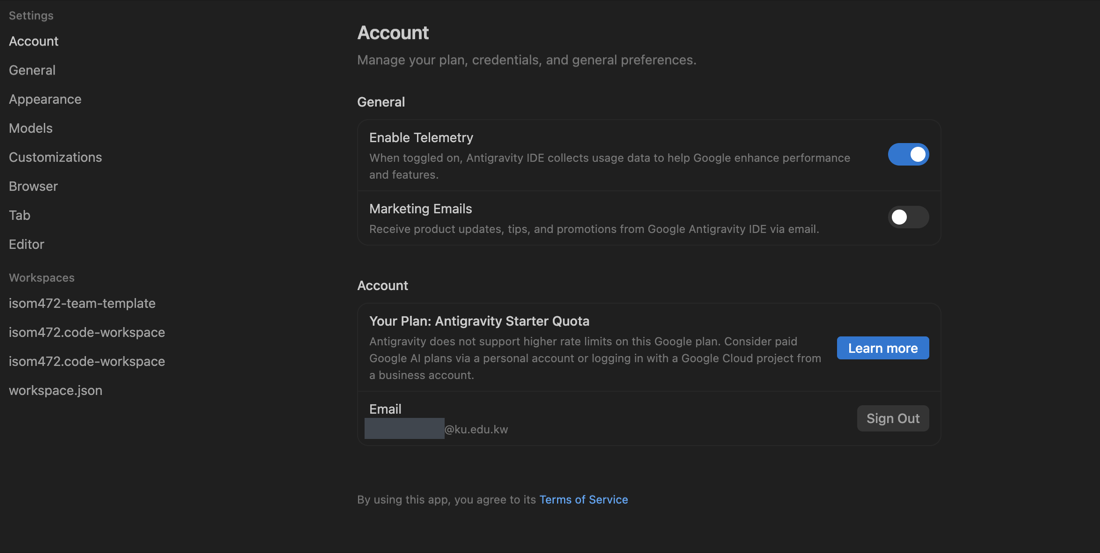
Your Kuwait University account signs you in to both Gemini Enterprise and Antigravity. It is the only Google account needed for this course. Do not create a personal Gmail account for it.
Sign in to Antigravity:
- Open Antigravity.
- Choose Continue with Google.
- Sign in with your KU account and finish the short setup.
You should see the main Antigravity window with its chat panel. Close it. On the evening before the session, open it once more and confirm it is still signed in.
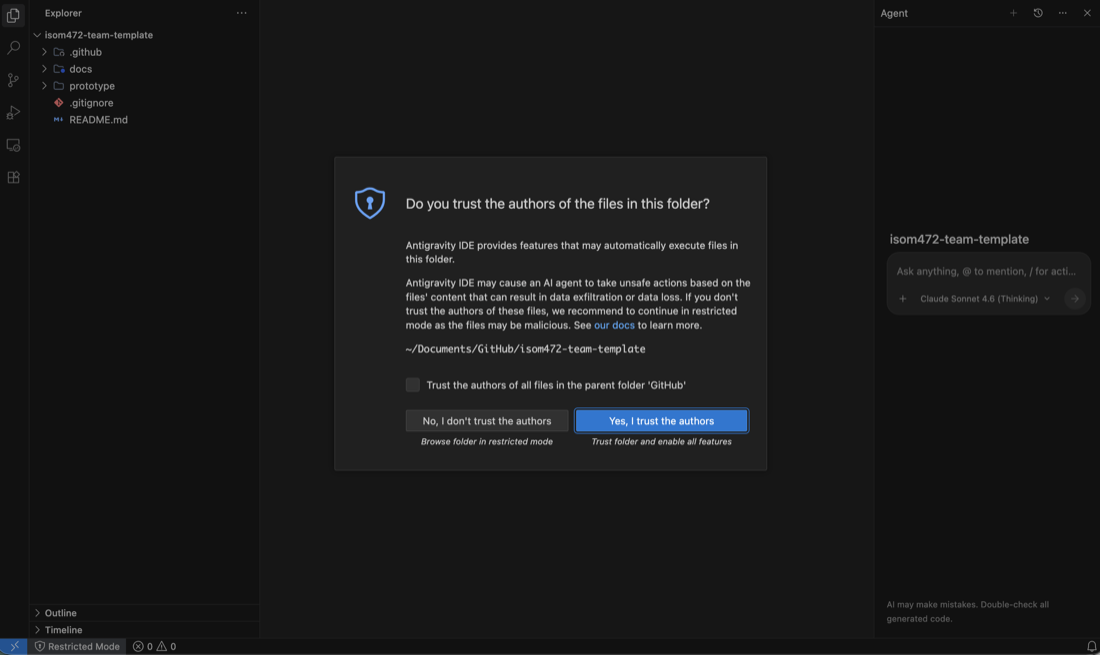
The first time you open a folder, Antigravity asks whether you trust the authors of the files in it. For your team’s own repository, the answer is yes.
Sign in to Gemini Enterprise:
- Open a browser and go to https://ai.ku.edu.kw.
- Choose Sign in and use the same KU account.
You should see Gemini Enterprise open in the browser with an empty prompt box ready for a first message, and your KU account shown as the signed-in account. Nothing has to be installed for this one — it runs in the browser.
GitHub — one account each
Every student needs an individual GitHub account. Sign up at https://github.com/signup.
When the account exists, write down your GitHub username — the username, not the email address. Your username is what identifies your work in the team repository for the whole semester. Bring it to the session: it goes on the team roster workbook, and that is what the instructor uses to invite you to your team's repository.
You should see your username at the top of github.com when signed in, and the same account signed in inside GitHub Desktop.
Tell git who you are
This is the step people skip, and it is the one that costs marks. Every commit carries a name and an email address. If that address is not on your GitHub account, GitHub cannot tell the commit is yours — it shows a grey icon and no name, the work does not appear in your record, and it does not count towards your individual mark.
Set it in GitHub Desktop, once, before your first commit:
- Open Settings — on Windows it is File › Options, on a Mac GitHub Desktop › Settings.
- Choose Git down the left, then the Author tab.
- Put your own name in Name.
- Choose your KU email address in Email. It must be an address that is already on your GitHub account — add it first under Settings › Emails on github.com if it is not there.
- Click Save.
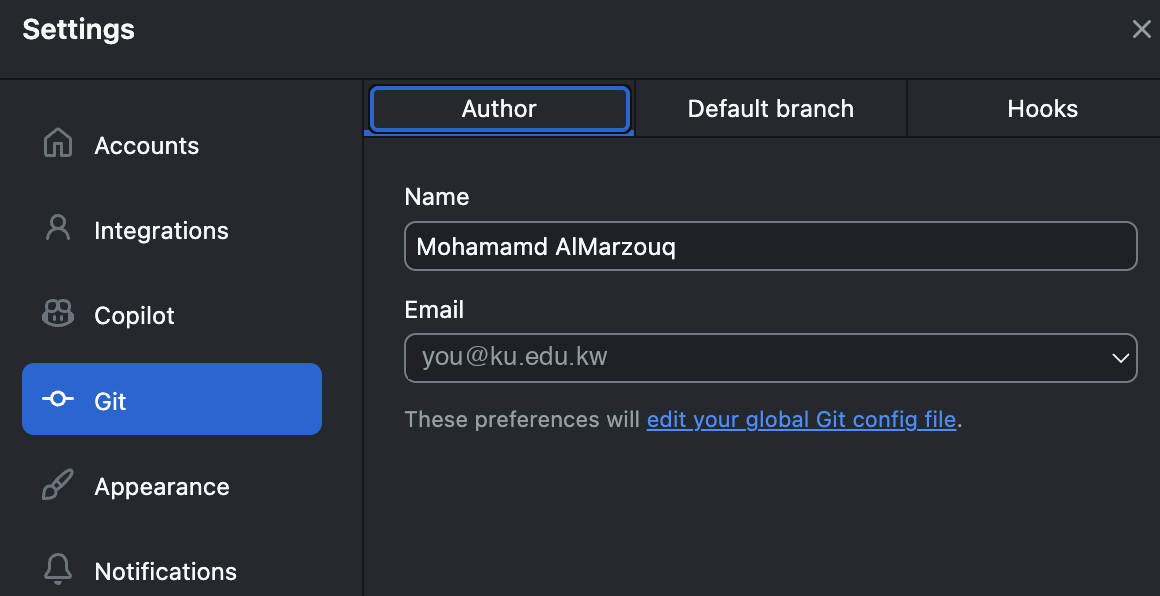
Antigravity and the terminal read the same settings, so doing it here does it everywhere. If you would rather type it, these two lines are exactly equivalent:
git config --global user.name  "Your Name"
git config --global user.email "you@ku.edu.kw"
You should see, on the first commit you make, your own photo and username beside it on github.com. A grey icon means the email is wrong — fix it here and commit again. Commits already made with the wrong address stay wrong; they are not rewritten.
Supabase — one account per team
Supabase is the database. Each team creates a single Supabase account and shares it. This is not one account per student. Because the team does not exist until the setup session, this account is made after it, not at home with the other two. Create it once the team is formed, and before the week the schema is needed.
Decide within the team who creates it, and make sure every member knows whose email address it uses. That one inbox receives the verification codes, so signing in depends on that person being reachable. Every member must be able to sign in to the account.
Sign up at https://supabase.com/dashboard/sign-up. It is free, it works in Kuwait, and it does not ask for a card.
Then create one project inside that shared account — one project for the team, not one each. Supabase asks for a project name, a region and a database password. Choose the region nearest Kuwait. Set the database password when you create the project and keep it somewhere the whole team can reach it, because it is not shown again afterwards.
The database password never goes in the repository. The team repository is public. A password committed to it is public from the moment it is pushed, and deleting it later does not take it out of the history. Keep it outside the repository — see what belongs in the repository.
You should see the project dashboard, with the project name at the top and the table editor, SQL editor and authentication sections listed down the side. Every member should be able to sign in and reach this same dashboard.
The team repository
The instructor creates the repository for each team, in the course
organisation at github.com/isom472-fall2026. They are named
by team number — team1, team2, and so on.
Teams do not create their own, and there is nothing to set up on GitHub
beyond your individual account. The order is:
- Every student creates a GitHub account and notes the username, as in the step above.
- The team fills in the team roster workbook: one row per member, giving each member's role and the team's Phase Lead rotation. The roles are described in Part 3 below.
- The team's Phase 1 Lead emails the completed workbook to the instructor at mo.almarzouq@ku.edu.kw. One email per team, not one per student.
- The instructor creates the team repository from the course template, with the public page already switched on, and gives the team access.
- Each member accepts the emailed invitation. GitHub sends an invitation to the address on your GitHub account. Open it and accept it. Check the spam folder if it does not arrive. Until you accept, the repository will not appear for you.
-
Read
docs/setup.mdinside the repository. It covers the rest: telling git who you are, your public page, and the Supabase project. All work for the rest of the semester happens in that repository.
You should see the repository listed in your GitHub account
when signed in, and listed again in GitHub Desktop when you choose to clone a
repository. Your team's page is already live at
isom472-fall2026.github.io/<your-repo>/docs/, showing
placeholder text until you edit it.
Download the workbook here: isom472-team-roster.xlsx. It opens in Excel, Numbers or Google Sheets.
The workbook is due before you leave the setup session. Filled in and emailed, not finished later at home. Until it arrives the team is not invited to its repository, so nothing else in the course can start. Exact dates are announced in class and on the course site.
Nothing in this course requires a purchase, a paid plan or a credit card. If a screen asks for payment, stop and ask before continuing — you are on the wrong page or the wrong plan.
Part 3 — Team roles
Settle three things with your team at the setup session: who is in the team, the standing role each member holds for the semester, and the whole Phase Lead rotation — all six phases, decided at once, not one at a time. All of it goes on the roster workbook, and the team's Phase 1 Lead emails the completed workbook to mo.almarzouq@ku.edu.kw before leaving the session. One email per team.
What each role owns, and how the roles divide in a team of four, five or six, is on the team roles page. Two rules hold whatever your role: every member delivers at least two named stories end to end each sprint, and every member reviews teammates' pull requests — nobody approves their own.
What to bring
- Your laptop, charged, and its charger. Room 1001 does not have enough outlets for everyone.
- Antigravity and GitHub Desktop already installed.
- Sign-in details for your KU and GitHub accounts, reachable from the laptop you bring — not saved only on a phone, and not a password that would have to be reset during the session.
- Your GitHub username, written down. It goes on the roster workbook.
- A few gigabytes of free disk space.
Troubleshooting
| What you see | What to do |
|---|---|
| Windows: a blue "Windows protected your PC" box | Choose More info, then Run anyway. Expected for a new application. |
| macOS: the developer cannot be verified | Open System Settings, then Privacy & Security, scroll down, and choose Open Anyway. |
| The download stalls or fails partway | Start it again on home wifi rather than on phone data or campus wifi. Do not retry it during the session. |
| It installs but will not open, or closes immediately | Restart the laptop and try once more. If it fails again, stop and bring the laptop to the session. |
| The Mac has an Intel processor | Google's own pages disagree about Intel support. Try the Intel build; if it fails, bring the laptop to the session. |
If it will not install
In this order:
- Bring it to the setup session. Fixing installations that failed is a planned part of the session, not an interruption of it.
- Pair with a teammate for that session and get your own machine working afterwards.
The one thing to avoid is arriving at the session having tried nothing.
The details on this page were verified against Google's own pages on 12 September 2026. Antigravity is a preview product and changes often. If the download page looks different from this description, follow the page and report what changed.